App Store screenshot localization: a layout-first workflow
Adapt screenshot copy, product captures, and layouts for each language without shrinking every headline or losing the original story.
Before you start
- Translate the visible product state as well as the headline.
- Allow layouts to adapt instead of shrinking every translation.
- Review complete exported images with a fluent speaker.
Localizing a screenshot set is a small design project. The headline, the interface, the example content, and the order of the story all contribute to what a visitor understands. Replacing an English sentence while leaving every other detail untouched can produce a polished-looking image that still feels unfinished.
Start with the languages the released app actually supports. A localized marketing image should accurately represent the experience someone can use after installing it. Keep your supported product languages, App Store localizations, and export folders documented together so that an attractive new set does not accidentally promise an unavailable interface.
Give every slide a translation brief
Record the purpose of each slide before sending the headlines for translation. Include the original sentence, the visible product state, the idea that must survive, and any terms already used in the app. “Explain that recipes can be collected from several sources” is more useful context than a character limit alone.
Separate a hard requirement from a convenient line break. A feature name may need to remain consistent with the app, while a two-line headline can become three lines if the layout still reads well. Let the translator suggest natural wording instead of treating the original arrangement as part of the meaning.
Translate the product, not only the caption
Capture the app in its localized state whenever possible. Check navigation labels, empty states, date and number formatting, and the content inside the screen. A translated promise above an English-only interface can create an expectation gap, especially when the headline points to an action whose button is visible below.
Use appropriate demonstration content rather than real customer information. For a food app, the recipe title, ingredient units, and cooking instructions should make sense together. For a calendar, its example dates and formatting should be coherent. Do not replace an in-app label in an image editor to imply that the released app has already been translated.
Apple’s localization guidance describes testing language variants and generating localized screenshots in Xcode. It also recommends native-speaker feedback when machine translation is used. Treat that review as part of the production plan, not a last-minute spelling check.
Keep a layout flexible
Build room for a different sentence length before you begin. A headline container that only fits the English wording is a fragile template. Keep the product image and headline as separate elements, use consistent margins, and allow deliberate changes to the line count. Avoid solving every overflow by reducing the font until the message is hard to read.
When a line wraps awkwardly, try a better phrase first, then adjust the measure or the product crop. Revisit decorative elements before sacrificing the main message. The goal is a clear local version of the same idea, not a pixel-for-pixel reproduction of the English slide.
For right-to-left languages, review the full composition with someone who reads the language. Product layout, directional icons, screenshots, and reading order can interact. Do not mirror an entire flattened image indiscriminately: that can reverse photographs, logos, or interface elements that should remain unchanged.
Review sets in two directions
First, review one language from beginning to end. Does the opening promise make sense? Do the next slides explain different parts of the product? Then compare the same slide across languages. This second pass catches a missing screenshot, a different product state, or a headline that no longer supports the same point.
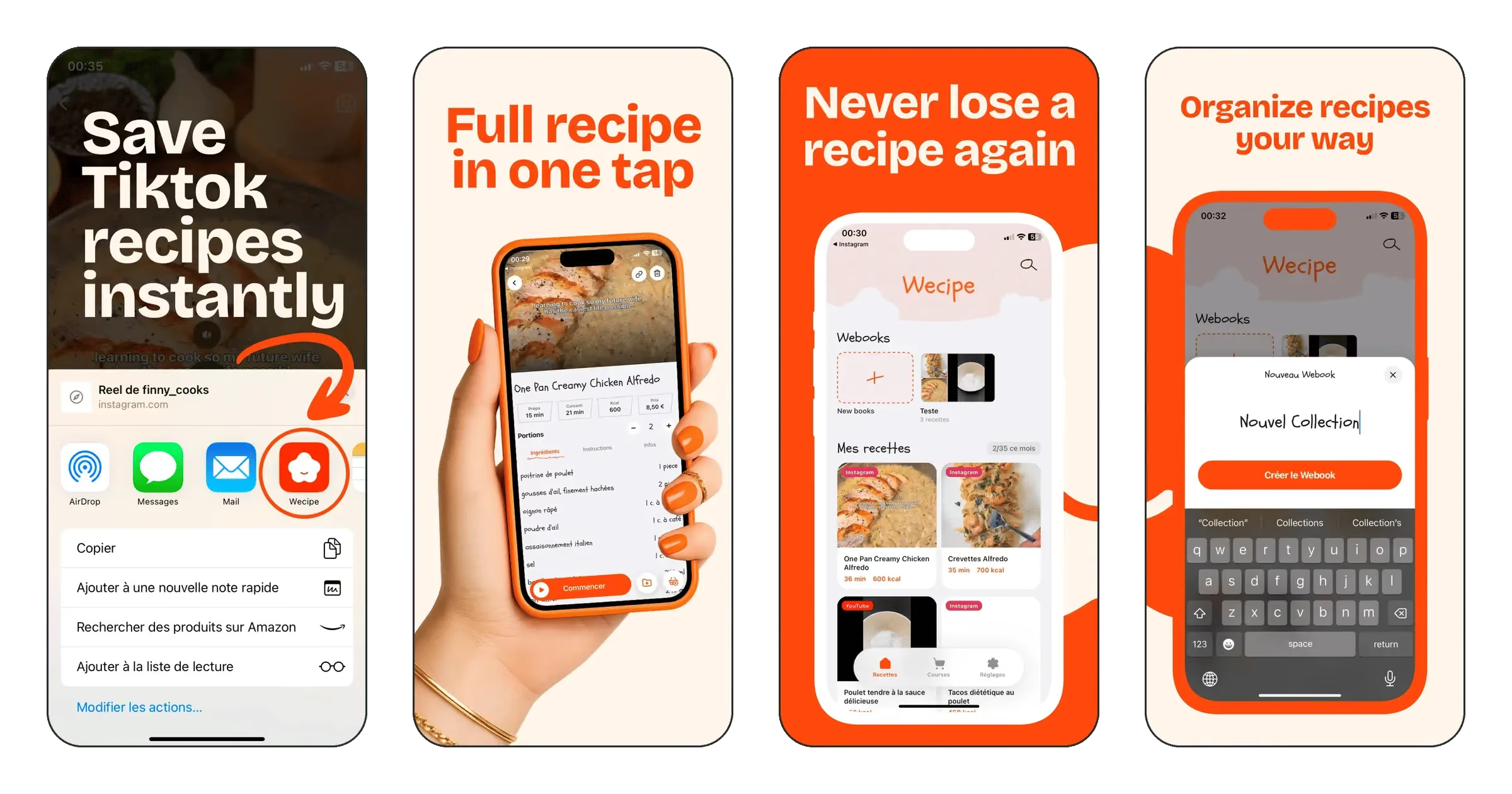
The Wecipe reference gives you a real food-app sequence to use as a planning exercise. Write a one-sentence brief for each visible screen, then consider which pieces of its sample content would need attention in another language. The exercise is about learning what to inspect, not reusing another app’s assets in your own listing.
- Ask a fluent reviewer to read the final images, not just a spreadsheet of translations.
- Check clipped words, unintended line breaks, punctuation, and missing characters.
- Confirm that the visible interface matches the intended app language.
- Check the set at a small viewing size as well as full resolution.
- Confirm the filenames, order, target device, and locale before upload.
Make the handoff easy to audit
Use a consistent naming pattern, such as fr-FR_iphone-medium_02_import.png, and keep each locale’s final exports together. Maintain a short status list with the owner of the translation, product capture, design review, and final approval. A clear handoff is more dependable than asking someone to identify the right version from several similarly named files.
Apple’s asset management documentation explains how to provide device-specific and localized assets in Media Manager. Before uploading, run the export checklist; if the story needs simplifying, return to the first-screenshot guide. Keep the final local version faithful to the product and easy to understand.
Sources & further reading
Technical references checked November 5, 2026.